Forms for Slack has a native Google Sheets integration that automatically syncs every form response to a spreadsheet in real time — no third-party tools needed.
Requirements
- A Team or Pro plan (Google Sheets is not available on the Basic plan)
- A Google account with access to Google Sheets
Step 1: Create or edit a form
Open Forms in Slack and create a new form, or edit an existing one. After saving, you will see a summary modal with a Connect Sheet button.

Step 2: Connect your Google account
Click Connect Sheet. If this is your first time, you will be asked to sign in with your Google account and grant Forms permission to create and edit spreadsheets on your behalf.
Step 3: Choose a spreadsheet
After signing in, you will see two options:

- Create new spreadsheet — A new Google Sheet will be created automatically with columns matching your form fields.
- Use existing spreadsheet — Browse your Google Drive and select an existing spreadsheet. Use this if you want to collect responses in a sheet you already have.
Step 4: Responses sync automatically
Once connected, every time someone submits your form in Slack, a new row is added to the spreadsheet with all the response data. No manual export needed.
Managing the connection
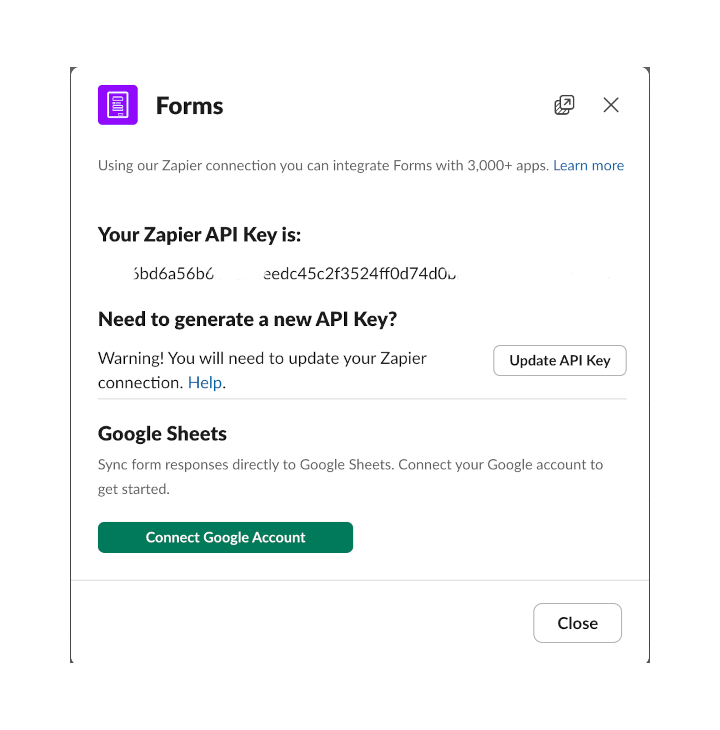
You can view or change the connected spreadsheet at any time from the Integrations modal in your form settings. Click the integrations button on your Forms home tab to see your Zapier API key and Google Sheets connection.
FAQ
Can I connect multiple forms to the same spreadsheet?
Each form connects to its own spreadsheet (or its own tab within a spreadsheet). This keeps your data organized and prevents column mismatches.
What data is included in the spreadsheet?
Each row includes a timestamp, the submitter’s name, and all form field responses — one column per field.
Do I need Zapier for Google Sheets?
No. The Google Sheets integration is built directly into Forms — no Zapier setup required. However, if you need to send responses to other apps (like Notion, Airtable, or email), you can still use the Zapier integration.